How to automate expense tracking without typing a single receipt

Automating expense tracking means your receipts capture, categorise, and land in a spreadsheet or accounting system without you touching a keyboard. The fastest working version looks like this: connect a bank or card feed, turn on receipt scanning with OCR, and set category rules that sort each transaction as it arrives. That combination alone removes most manual entry for a typical self-employed professional or small business.
Here is the three-step plan that gets you there:
- Connect your feeds. Link your business bank account or card to your tracking tool, or set up email forwarding so receipts land automatically in an inbox the system watches.
- Turn on receipt capture. Enable OCR scanning so photographed or emailed receipts extract vendor, amount, date, and tax fields automatically.
- Set categorisation and export rules. Build a handful of rules (by vendor, keyword, or amount) so transactions sort themselves, then point the output at a spreadsheet or accounting export.
Before you do anything else, run this 30 second check:
- Is there a card or bank feed you can connect today, or will you rely on CSV imports?
- Do you have an email address (or alias) you can dedicate purely to receipts?
- Have you listed your five or six most common expense categories, ready to turn into rules?
Get those three things right and the end state is simple: audit-ready rows sitting in your spreadsheet or accounting software, updated automatically, costing you a few minutes a week rather than hours a month.
Key takeaways
Automating expense tracking works when capture, categorisation, and export run on rules rather than manual entry, cutting weekly admin time to minutes rather than hours.
| Point | Details |
|---|---|
| Start with capture | Connect a bank feed or set up a dedicated receipt email alias before anything else. |
| Build rules around patterns | Categorise by vendor pattern and amount range, not individual transactions, to catch new vendors automatically. |
| Test before trusting | Run a five-receipt test batch and a full parallel month before retiring manual records. |
| Upgrade when volume or complexity grows | Move from DIY to a managed tool like Ledgery once quarterly HMRC reporting or receipt volume outpaces a spreadsheet. |
Table of Contents
- How to automate expense tracking: choosing fast wins versus full automation
- Step-by-step setup: the shortest path that actually works
- Rule templates and shortcuts that save the most time
- Build your own AI-enabled expense tracker: architecture and a no-code recipe
- Privacy, data security, and tax reporting notes
- How to choose the right tool or approach
- If you prefer Excel or Google Sheets: automations that remove manual entry
- When a managed, tax-aware tool makes more sense than DIY
- Common traps and what usually trips people up
- Get quarterly-ready without building the pipeline yourself
- Frequently asked questions
- Sources
How to automate expense tracking: choosing fast wins versus full automation
Not every reader needs the same setup. Someone with fifteen receipts a month has a very different problem to someone running a property portfolio with forty transactions a week, and the right automation approach depends on your skill level, budget, and how much time you’re currently losing.
There are five broad routes worth knowing about.
Spreadsheet plus email rules. You forward receipts to a dedicated inbox, an automation tool extracts the data, and it writes straight into Google Sheets or Excel. This is the cheapest and fastest route to set up, usually under an hour, and suits beginners with modest volume.
Receipt-scanner apps with spreadsheet export. Dedicated OCR apps photograph or scan receipts and export structured rows. ExpenseBot, for instance, extracts vendor, amount, date, tax, and payment method from photos, PDFs, and emails, then writes those fields directly into Google Sheets, so each receipt becomes a structured row without manual retyping. This suits intermediate users who want automation without building anything themselves.
Bank feeds synced to accounting software. Your card or bank connects directly to platforms like QuickBooks or Xero, transactions import automatically, and categorisation rules apply on arrival. This is the standard route for small businesses already using accounting software and wanting reconciliation built in.
No-code AI workflows. Tools like Zapier or n8n chain together OCR services, categorisation logic, and storage destinations, giving you a custom pipeline without writing code. This suits people comfortable with basic logic building who want more control than an off-the-shelf app offers.
Custom code stacks. Developers or technically confident founders can call OCR and language-model APIs directly, building bespoke categorisation and storage logic. This is the most flexible option and the most expensive in time, best reserved for people with genuinely unusual requirements.
Each approach trades off setup time against control. Spreadsheet rules take an hour but break when vendor names change format. Full accounting sync takes a day to configure properly but barely needs touching afterwards. No-code workflows sit in between: a weekend project that then runs largely unattended.
| Approach | Capture | Auto-categorisation | Reconciliation | Export |
|---|---|---|---|---|
| Spreadsheet + email rules | Email forwarding only | Basic keyword rules | Manual | Native (it’s already a sheet) |
| Entry-level receipt apps | Photo + email + PDF | Built-in AI rules | Limited | CSV / Sheets |
| Bank feeds + accounting sync | Direct feed | Rule-based + learning | Automatic | Native to platform |
| No-code AI workflows | Multi-channel (chat, email, upload) | Custom via LLM | Depends on build | Any destination you configure |
| Full managed platform | Photo + feed + email | AI + HMRC-aware categories | Automatic | Standard reports |
Step-by-step setup: the shortest path that actually works
Start by picking your capture method, because everything downstream depends on it. If most of your receipts arrive by email (Amazon, software subscriptions, fuel apps), email forwarding is your fastest win. If most arrive as paper receipts from shops or clients, photo capture via a mobile app matters more.
- Pick your primary capture channel. Choose email forwarding, mobile photo capture, or both, based on where most of your receipts actually originate.
- Connect your card or bank feed. Link accounts directly where the tool supports it; fall back to monthly CSV import if it doesn’t.
- Enable OCR on receipt images and PDFs. This extracts vendor, date, amount, and tax fields without you typing them in.
- Configure category rules. Start with five or six rules covering your biggest expense types, then refine as exceptions appear.
- Set your export or reconciliation target. Decide whether output lands in Google Sheets, Excel, or syncs directly to QuickBooks or Xero.
- Run a test batch before trusting it fully. Feed through five real receipts and check every field lands correctly.
Sample rules that work well in practice:
- If vendor contains “Uber” or “Bolt”, categorise as Travel.
- If description matches a subscription pattern (monthly recurring amount, same vendor), categorise as Software.
- If vendor is a known stationery or office supplier, categorise as Office Costs.
- If amount exceeds a set threshold and vendor is unrecognised, flag for manual review rather than guessing.
Before relying on any tool, run a five-receipt test: mix a paper receipt, an email invoice, a subscription charge, and a foreign currency purchase. Check whether the vendor name, date, and amount extracted correctly, and note which categories needed manual correction. That tells you where your rules need tightening far faster than waiting a month to discover the same gaps.
A sensible cadence once it’s running: scan your inbox daily (this takes seconds if automated), correct miscategorisations weekly, and reconcile fully once a month against your bank statement.
Pro Tip: Set up a dedicated email alias just for receipts (something like receipts+yourname@gmail.com) rather than forwarding from your main inbox. It keeps personal purchases out of your business feed automatically and makes debugging categorisation errors far easier.
Rule templates and shortcuts that save the most time
A handful of well-built rules do more work than any app’s default settings. The trick is writing rules around patterns, not individual transactions, so new vendors that fit the pattern get caught automatically.
- Group recurring subscription charges (same amount, same vendor, monthly interval) into a single “Software & Subscriptions” rule rather than adding a new rule per tool.
- Use regex matching for ride-hailing and delivery services, since vendor names often include location codes or reference numbers that break simple keyword matches.
- Name categories to match your tax return’s structure from day one; retrofitting category names later means reclassifying months of history.
- Build a “review” category for anything the system can’t confidently place, rather than letting it guess and bury an error in your books.
Small automations compound. Auto-linking the original receipt image to its spreadsheet row means you never scramble for proof during a query. Auto-tagging VAT lines as transactions arrive, rather than calculating them retrospectively, turns a quarterly headache into a non-event. Expense management tools increasingly build in real-time spend visibility and duplicate-subscription detection, which catches wasted spend the moment it happens rather than three months later during a review.
Build your own AI-enabled expense tracker: architecture and a no-code recipe
If off-the-shelf tools don’t fit your workflow, building a bespoke pipeline is more accessible than it sounds. The architecture has four layers: a capture layer where receipts enter the system, an extraction layer that reads the data, a categorisation layer that decides what it means, and a storage layer where it ends up.
Capture layer: a Telegram bot you photograph receipts into, an email inbox, or a mobile upload form.
Extraction layer: an OCR service that pulls structured fields (vendor, amount, date, tax) from the image or PDF.
Categorisation layer: either simple keyword rules or a language model like OpenAI’s GPT reading the extracted text and assigning a category based on context, which handles ambiguous vendor names far better than keyword matching alone.
Storage and sync layer: Google Sheets, a database, or a direct push into accounting software.
A working no-code recipe using Zapier or n8n looks like this: a Telegram trigger fires when you send a photo, an OCR step (via a connected receipt-scanning API) extracts the fields, an OpenAI step reads the vendor and description to assign a category, and a final step writes the result as a new row in Google Sheets. No-code builders paired with OCR and a lightweight language-model categorisation step give you the fastest, lowest-cost path to a custom tracker, without needing to write or maintain application code.
A typical flow: you photograph a receipt in Telegram, OCR extracts “Vendor: Tesco, Amount: £34.20, Date: 14 March”, GPT reads that and assigns “Office Supplies” based on similar past entries, and the row appears in your sheet within seconds. Some receipt-scanning services also handle multi-currency conversion using historical exchange rates, which matters if you buy software or travel abroad regularly.

| Factor | No-code (Zapier/n8n) | Custom code |
|---|---|---|
| Speed to build | Hours to a weekend | Days to weeks |
| Maintainability | Visual, easy to adjust | Requires developer time for changes |
| Accuracy | Depends on OCR/LLM provider quality | Fully controllable, more tuning effort |
| Cost | Subscription fees per tool, scales with volume | Development time plus API usage costs |
Privacy, data security, and tax reporting notes
Sending financial documents to a cloud service is not a decision to make casually. Check where your data is stored (data residency matters if you’re subject to UK data protection rules), confirm bank connections are read-only rather than able to initiate transactions, and verify encryption both in transit and at rest.
- Confirm the provider states a clear data retention policy and gives you a way to delete your data on request.
- Check whether receipt images are stored alongside extracted data or discarded after processing.
- Avoid routing highly sensitive documents (anything containing full account numbers or personal medical detail) through general-purpose cloud OCR tools.
- Keep a monthly export habit (CSV or standard report) so your records survive even if a tool changes hands or shuts down.
For UK self-employed individuals and property owners, HMRC’s Making Tax Digital requirements mean quarterly digital record-keeping is becoming the norm rather than the exception, and auditors expect receipts linked directly to the transaction they support, not a shoebox of paper matched up after the fact. Manual expense reporting averages around 45 minutes per report, and automation can cut that processing cost by roughly 60%, a gap that widens every quarter you keep doing it by hand.
This article gives general guidance, not tax advice specific to your circumstances. Confirm current MTD thresholds and deadlines directly with HMRC or a qualified accountant before relying on any workflow for your actual filings.
How to choose the right tool or approach
Run through this checklist before committing to any platform:
- Does it support the capture modes you actually use (photo, email, PDF, direct feed)?
- Can it connect to your bank or card provider directly, or does it rely on manual CSV import?
- Does it export to the destination you need (Google Sheets, Xero, QuickBooks) without a workaround?
- Can you create custom categories that match your tax return structure?
- How easy is it to correct a miscategorised transaction, and does it learn from the correction?
- Does it keep an audit trail linking each record back to its original receipt?
Watch pricing carefully. Free tiers often cap the number of receipts or OCR credits per month, and connector fees for bank feeds can appear as a separate line item. Per-user pricing catches out small teams who assumed a single subscription covered everyone.
- Red flag: no export function, meaning your data is effectively locked into one vendor.
- Red flag: reconciliation tools that don’t flag duplicates or missing receipts automatically.
- Red flag: vague or absent data retention policy.
If you’re still on spreadsheets and finding that correcting errors and chasing missing receipts eats more than an hour a week, that’s the signal to upgrade. The cost of a subscription is usually far lower than the value of the time you’re losing.
If you prefer Excel or Google Sheets: automations that remove manual entry
You don’t have to abandon spreadsheets to automate expense tracking. A well-built sheet with the right automation layered on top does most of the same job as dedicated software, and it’s a route routing email receipts to spreadsheets is a high-impact, low-cost automation for freelancers and self-employed professionals.
Start with a minimal column set: date, vendor, description, amount, currency, category, VAT/tax amount, receipt link, and payment method. Keep it this lean; extra columns you never fill in just add friction.
- Set up email forwarding to a dedicated address that a Zapier or Apps Script automation monitors.
- Configure the automation to extract vendor, amount, and date from incoming receipt emails.
- Write each extracted receipt as a new row in your sheet, with a link to the original attachment.
- Add a lookup table (a second sheet tab) mapping vendor keywords to categories, referenced by a formula in your main sheet.
- Build a simple pivot table summarising spend by category and month for quick review.
Useful formula patterns:
- Currency conversion:
=VLOOKUP(currency_cell, exchange_rate_table, 2, FALSE) * amount_cell - Auto-categorisation via lookup:
=IFERROR(VLOOKUP(vendor_cell, category_lookup_table, 2, FALSE), "Review") - Monthly reconciliation pivot: group by month and category, sum the amount column, and compare the total against your bank statement export.
Before deleting any old manual records, run a parallel month: keep your old system running alongside the new automated one, compare totals at month end, and only retire the manual process once the numbers match.
When a managed, tax-aware tool makes more sense than DIY
DIY automation gets you most of the way, but it stops short of one thing: mapping your categories directly to what HMRC expects on a quarterly return. That gap is exactly where a purpose-built tool like Ledgery adds value beyond a spreadsheet or a generic OCR app.
- Ledgery scans receipts on your phone and organises the extracted data straight into quarterly HMRC-ready updates, rather than leaving you to translate spreadsheet categories into tax terms yourself.
- It sends deadline alerts ahead of quarterly submission dates, which matters more than it sounds once MTD becomes mandatory for higher earners.
- The free first quarter lets you test the workflow against your real receipts before committing to a subscription.
- It’s built specifically for sole traders and property income, not general business accounting, so the categorisation logic maps directly to how HMRC wants that income reported.
Consider upgrading from a DIY spreadsheet setup when your monthly receipt volume climbs past what you can review in ten minutes a week, when your income mix gets complicated (multiple properties, mixed self-employment and property income), or when quarterly HMRC submission deadlines start feeling like a scramble rather than a formality.
What a managed service does that a DIY spreadsheet can’t easily replicate is the mapping between everyday categories and HMRC’s specific reporting structure, combined with an audit trail that links every reported figure back to its original receipt image.
Common traps and what usually trips people up
Mixing personal and business receipts in the same inbox or account is the single most common mistake. Once a personal Amazon order and a business software subscription hit the same feed, every categorisation rule downstream has to guess, and guessing is where automation breaks down fastest.
Relying purely on vendor names for categorisation causes similar trouble. Amazon sells everything from office chairs to personal groceries, so a rule that categorises “Amazon” as a single expense type will misfile a chunk of your transactions no matter how well-built the rest of your automation is. Add a secondary rule based on amount or description keywords to catch the exceptions.
Duplicate subscriptions slip through more often than people expect, particularly when a free trial converts to paid and the vendor name changes slightly between the two charges. A monthly review of recurring charges, even a quick five-minute scan, catches these before they’ve cost three or four months of wasted spend.
A rapid onboarding checklist that avoids breaking existing reconciliation: set up your new automation for one calendar month running in parallel with your old method, compare the two side by side at month end, fix any rules that produced mismatches, and only retire the old process once a full month matches cleanly.
Get quarterly-ready without building the pipeline yourself
Ledgery is the shortcut for anyone who read through the no-code recipes above and thought, “I’d rather not build this myself.” Instead of stitching together OCR services, categorisation rules, and spreadsheet exports, you photograph a receipt and Ledgery organises it straight into a quarterly HMRC update.
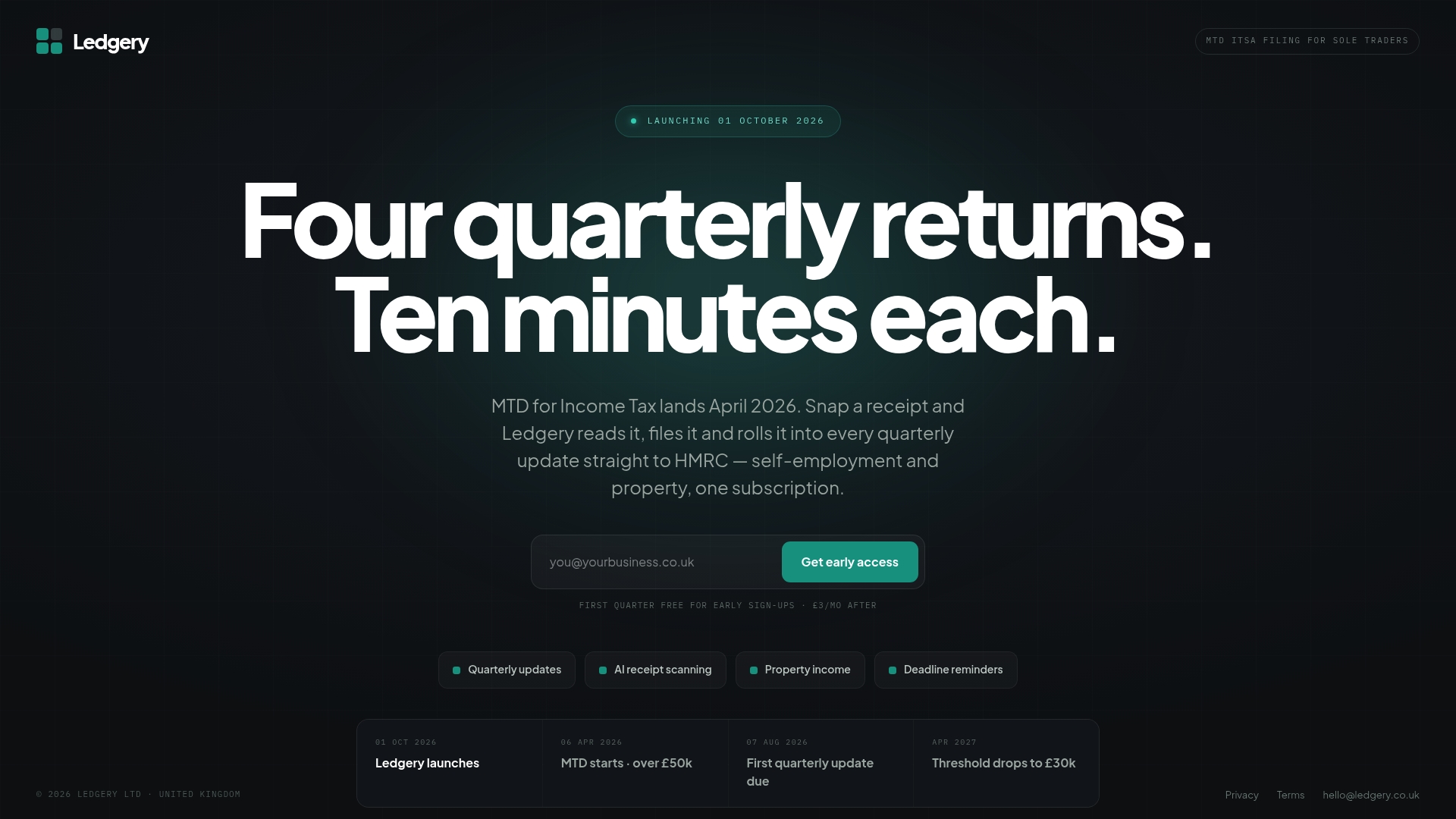
It’s built specifically for UK sole traders and property owners, which means the categories map to what HMRC actually wants, not a generic business expense template you’d have to adapt yourself. Deadline alerts mean quarterly submissions stop being a source of last-minute panic, and the free first quarter means you can test it against your own receipts before paying anything. If you’re earning above £50,000 and Making Tax Digital is on your radar, start your free first quarter with Ledgery and see whether it replaces the spreadsheet you’ve been patching together.
Frequently asked questions
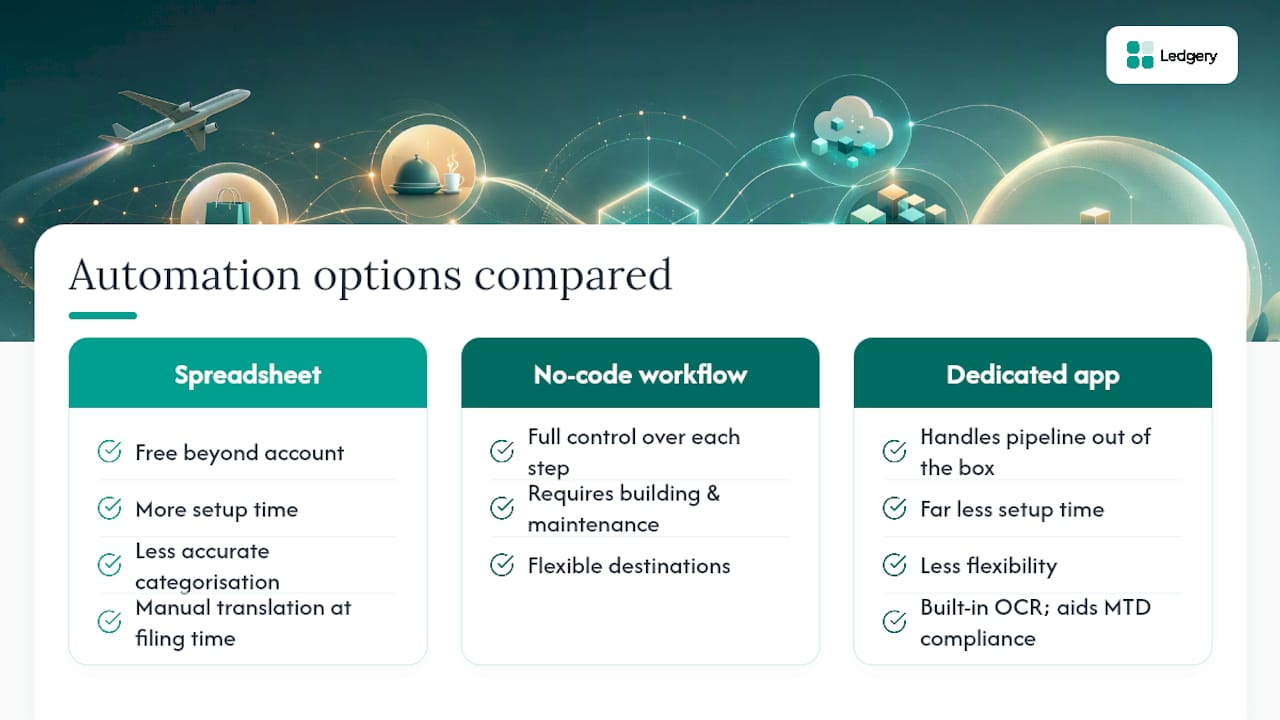
Can I automate expense tracking without paying for software? Yes, to a point. Spreadsheet plus email forwarding rules cost nothing beyond your existing Google or Microsoft account, though you’ll spend more setup time and get less accurate categorisation than a dedicated tool with built-in OCR.
How accurate is receipt-scanning OCR? Vendor-reported accuracy on test sets can exceed 99%, though real-world accuracy depends heavily on receipt quality, handwriting, and faded thermal paper, so a review step for low-confidence extractions is still worth keeping.
Does automating expense tracking help with UK tax filing? It helps significantly if the categories map to what HMRC expects on a quarterly return. Generic business categories still need manual translation at filing time, which is the gap purpose-built tools for MTD compliance are designed to close.
What’s the difference between a no-code workflow and a dedicated app? A no-code workflow (built in Zapier or n8n) gives you full control over each step and destination but requires you to build and maintain it. A dedicated app handles the same pipeline out of the box, with less flexibility but far less setup time.
How often should I reconcile automated expense records? Weekly for spotting miscategorisations early, monthly for a full reconciliation against your bank statement, and quarterly if you’re preparing HMRC submissions under Making Tax Digital.
This article is general information, not a substitute for advice from a qualified financial advisor. Consult a qualified financial professional about your own circumstances before acting on anything here.
Sources
Recommended
Self-employment and property income in one subscription, first quarter free. Join the early access list and we’ll email you once, when it opens.
Join early access